
File Management
LMDA Composer supports working with local files on your computer, allowing you to develop scripts outside of LogicModules and manage your own script library.
File Types
Section titled “File Types”Supported Extensions
Section titled “Supported Extensions”| Extension | Language | Notes |
|---|---|---|
| .groovy | Groovy | Groovy scripts |
| .ps1 | PowerShell | PowerShell scripts |
| .txt | Plain text | Uses tab language setting |
When you open a file, the extension determines the language, syntax highlighting applies automatically, and execution mode defaults to Freeform.
Opening Files
Section titled “Opening Files”| Method | Action |
|---|---|
| Welcome Screen | Click Open File and select from the system dialog |
| Keyboard | Press Ctrl+K, O / Cmd+K, O |
| Drag and Drop | Drag a file onto the LMDA Composer window |
| Recent Files | Click a file from the recent files list on the welcome screen |
Open Module Directory
Section titled “Open Module Directory”Open a saved module folder to restore a previously saved LogicModule with its metadata and portal binding intact.
What It Does
Section titled “What It Does”- Restore Module Binding — Automatically reconnects to the original portal and module from saved metadata
- Enable Commit Workflow — Push changes back to LogicMonitor just like a freshly loaded module
- Load All Scripts — Opens the main script plus any AD scripts or pre-scripts in the folder
How to Access
Section titled “How to Access”| Method | Action |
|---|---|
| Keyboard | Press Cmd+K, F to open directly |
| Actions Menu | Click Actions → Open Module Folder in the toolbar |
| Welcome Screen | Click Open Module Folder on the welcome screen |
Module Directory Structure
Section titled “Module Directory Structure”When you save a portal-bound module to disk, LMDA Composer creates a folder with the following structure:
my-datasource/├── script.groovy # Main collection script├── ad-script.groovy # Active Discovery script (if applicable)├── pre-script.groovy # Pre-script (if applicable)└── module.json # Module metadata + portal bindingThe module.json file contains:
- Module ID and name
- Portal hostname and module type
- Script type mappings
- Original module metadata for diffing
Use Cases
Section titled “Use Cases”Track module changes with Git:
- Save module to a local folder
- Initialize a Git repository:
git init - Commit changes as you develop
- Push to GitHub/GitLab for backup and collaboration
This provides full version history that LogicMonitor doesn’t offer natively.
Share module development:
- Save module to a shared repository
- Team members clone the repo
- Each developer opens the module directory
- Changes can be reviewed via pull requests
- One person commits approved changes to LM
Keep local copies of important modules:
- Save critical modules to disk as backups
- Store in cloud-synced folder (Dropbox, OneDrive)
- Restore anytime by opening the module directory
- Compare local vs portal versions before committing
Work without portal connection:
- Save module while connected
- Develop offline with full editor features
- Reconnect to portal when ready
- Open module directory and commit changes
Workflow Example
Section titled “Workflow Example”-
Load module from portal using the LogicModule Browser
-
Save to disk via Actions → Save As or Cmd+K, Shift+S
-
Initialize Git in the module folder for version tracking
-
Make changes and commit locally with descriptive messages
-
Later, open module directory with Cmd+K, F
-
Push changes back to portal using the Commit button
Creating New Files
Section titled “Creating New Files”-
Click New File on welcome screen, or click + in the tab bar, or press Ctrl+K, N
-
File opens with your default language setting
-
Start writing your script (or insert a template from Snippets)
-
Save with Ctrl+S when ready
Saving Files
Section titled “Saving Files”Keyboard: Ctrl+S / Cmd+S
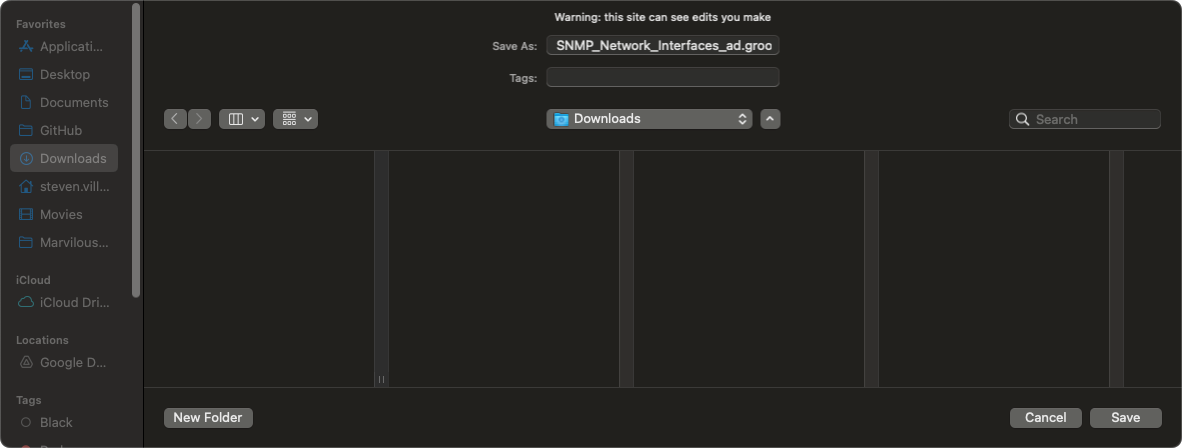
First save: Opens a dialog to choose location and filename.
Subsequent saves: File updates in place, no dialog appears, dirty indicator clears.
Keyboard: Ctrl+K, Shift+S / Cmd+K, Shift+S
Creates a copy at a new location. Original file remains unchanged.
File System Access API
Section titled “File System Access API”LMDA Composer uses the modern File System Access API for seamless file operations.
Browser Compatibility
Section titled “Browser Compatibility”| Browser | Support | Notes |
|---|---|---|
| Chrome | Full Support | Direct file reading/writing, file handles persist across sessions |
| Edge | Full Support | Same capabilities as Chrome |
| Brave/Vivaldi | Requires Setup | May need to enable the File System Access API flag |
Brave Browser Setup
Section titled “Brave Browser Setup”If File System Access is not available in Brave:
-
Open
brave://flagsin a new tab -
Search for “File System Access API”
-
Set it to Enabled
-
Restart your browser
Vivaldi Setup
Section titled “Vivaldi Setup”For Vivaldi browser:
-
Open
vivaldi://extensions -
Select “LMDA Composer”
-
Enable “Allow access to file URLs”
Auto-Save Drafts
Section titled “Auto-Save Drafts”LMDA Composer automatically saves drafts to protect your work.
| Feature | Description |
|---|---|
| How It Works | Drafts saved every 30 seconds to browser local storage. Recovered on next session. |
| Draft Recovery | If browser closes unexpectedly, draft recovery dialog appears on next open. Click Restore or Discard. |
File Handles
Section titled “File Handles”Persistent Handles
Section titled “Persistent Handles”For supported browsers:
- File handles saved to session
- Reopening restores handles
- Continue editing from where you left off
Handle Expiration
Section titled “Handle Expiration”Handles expire when:
- Browser is fully closed
- Permissions are revoked
- File is moved or deleted
Refreshing Handles
Section titled “Refreshing Handles”If a handle expires:
- File shows as “Unconnected”
- Click Reconnect in tab
- Select the file again
Tabs and Files
Section titled “Tabs and Files”- Local files show the filename
- Unsaved files show “Untitled”
- Module tabs show module name with link icon
The dirty dot (•) indicates:
- Unsaved changes to disk
- Modified since last save
- Will prompt on close
Closing a dirty tab shows options:
- Save & Close
- Discard
- Cancel
Recent Files
Section titled “Recent Files”Viewing Recent Files
Section titled “Viewing Recent Files”The welcome screen shows recent files with:
- File name and path
- Last opened date
- Language indicator
Managing Recent Files
Section titled “Managing Recent Files”- Click to open a recent file
- Use the remove button to clear items from the list
- List auto-cleans invalid entries
Recent Files Limit
Section titled “Recent Files Limit”Configure in Settings:
- Default: 10 files
- Range: 5-50 files
Best Practices
Section titled “Best Practices”- Organize Your Scripts — Create a folder structure like
scripts/production/datasources/for easy navigation - Backup Important Scripts — Save to cloud-synced folders (Dropbox, OneDrive) or use version control (Git)
- Use Naming Conventions — Use clear names like
DS_Linux_CPU_Usage.groovyorPS_Windows_Services.ps1
Local Development Workflow
Section titled “Local Development Workflow”-
Create local file
-
Develop and test script
-
When ready, copy to module or import as new
-
Keep local copy as backup