
Request Builder
The Request Builder provides a structured interface for creating and executing LogicMonitor API requests.
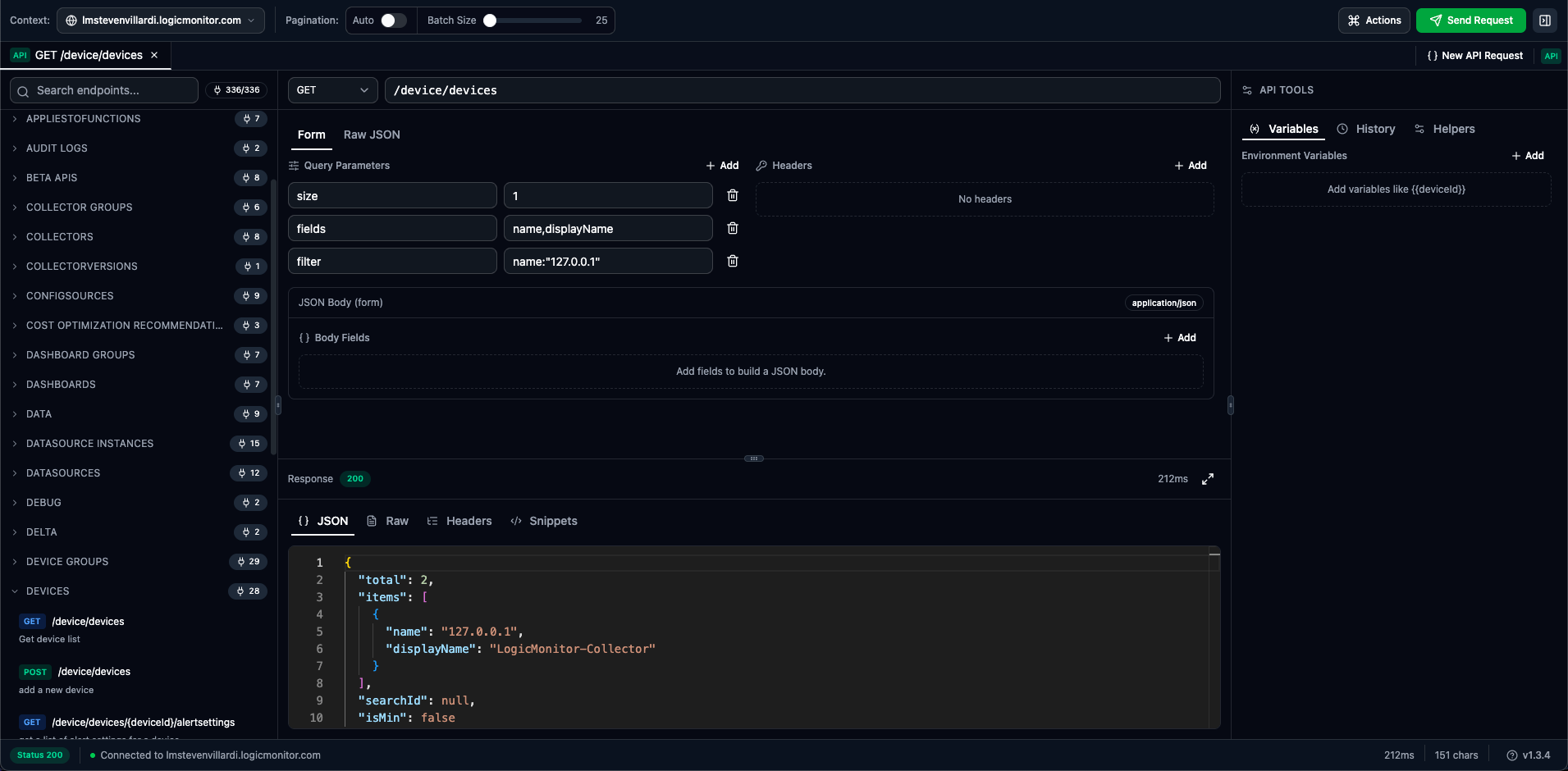
Request Components
Section titled “Request Components”HTTP Method
Section titled “HTTP Method”Select the appropriate HTTP method from the dropdown:
| Method | Purpose | Has Body |
|---|---|---|
| GET | Retrieve data | No |
| POST | Create resources | Yes |
| PUT | Replace resources | Yes |
| PATCH | Update fields | Yes |
| DELETE | Remove resources | No |
Endpoint Path
Section titled “Endpoint Path”Enter the API endpoint path with autocomplete:
/device/devices/device/devices/{id}/setting/collectorsPath Parameters
Section titled “Path Parameters”Replace {id} placeholders with actual values:
/device/devices/123/setting/collectors/45/installersOr use variables for reusability:
/device/devices/{{deviceId}}The path field provides autocomplete suggestions from the endpoint catalog as you type.
Body Modes
Section titled “Body Modes”The request builder offers two modes for editing request content:
Form mode provides structured editors for:
| Section | Description |
|---|---|
| Query Parameters | Key-value pairs appended to the URL |
| Headers | Custom HTTP headers for the request |
| Body | JSON body as key-value form fields |
Parameters are automatically URL-encoded when sending. Toggle parameters on/off without deleting them.
Raw mode provides a full JSON editor for the request body:
- Monaco editor with syntax highlighting
- Auto-formatting and validation
- Variable substitution (
{{variableName}}) - Full control over JSON structure
{ "name": "New Device", "displayName": "web-server-01", "preferredCollectorId": 1, "hostGroupIds": "1,2,3"}Toggle between modes using the Form / Raw JSON tabs above the body editor.
Docs Insert Actions
Section titled “Docs Insert Actions”The right sidebar Docs tab can populate the active request directly from endpoint documentation:
| Docs item | Insert result |
|---|---|
| Query parameter | Adds the key to Query Parameters and enables it |
| Header parameter | Adds the key to Headers and enables it |
| Top-level body field | Adds the field to the JSON body and keeps Form mode when possible |
| Nested body field | Adds the nested object path to the JSON body and switches to Raw JSON |
Nested schema rows can be collapsed and expanded with the chevron next to parent fields.
Query Parameters
Section titled “Query Parameters”Common query parameters for LogicMonitor API:
| Parameter | Description | Example |
|---|---|---|
size | Results per page | size=100 |
offset | Pagination offset | offset=0 |
filter | Filter expression | filter=displayName~"web" |
fields | Limit response fields | fields=id,displayName |
sort | Sort order | sort=+displayName |
Filter Syntax
Section titled “Filter Syntax”LogicMonitor filters use this syntax:
filter=property:valuefilter=property~"partial"filter=property>"2023-01-01"Operators:
| Operator | Meaning |
|---|---|
: | equals |
~ | contains |
!: | not equals |
> | greater than |
< | less than |
>: | greater or equal |
<: | less or equal |
Endpoint Catalog
Section titled “Endpoint Catalog”The left panel shows all available API endpoints organized by category.
Browsing Endpoints
Section titled “Browsing Endpoints”-
Use the search box to filter by path, method, or description
-
Expand categories to browse endpoints
-
Click an endpoint to load it into the request builder
Endpoint Categories
Section titled “Endpoint Categories”Endpoints are organized by resource type:
- Devices — Device management, properties, and monitoring
- Device Groups — Group operations and hierarchy
- DataSources — LogicModule management
- Alerts — Alert management and acknowledgment
- Settings — Account and portal settings
- Reports — Report generation and scheduling
Selecting an Endpoint
Section titled “Selecting an Endpoint”When you click an endpoint in the catalog:
- Method and path are populated automatically
- Example request body is generated (for POST/PUT/PATCH), with required schema fields included first when available
- Tab name updates to reflect the endpoint
- Previous response is cleared
Safety Controls
Section titled “Safety Controls”Write Confirmation
Section titled “Write Confirmation”API Explorer prompts before destructive requests by default. The prompt shows the method, path, and target portal hostname so you can verify the request before sending.
Use the API toolbar Confirm dropdown to change confirmation behavior without leaving the request builder. The same setting is available in Settings → API Explorer.
| Mode | Behavior |
|---|---|
| DELETE only | Confirm DELETE requests only |
| All write methods | Confirm POST , PUT , PATCH , and DELETE requests |
| Off | Send without confirmation prompts |
Read-only Mode
Section titled “Read-only Mode”Use Read-only mode when you only want to inspect data:
- Available from Settings → API Explorer
- Also available from the API toolbar next to pagination and confirmation controls
- Blocks non-GET request execution from the toolbar, actions menu, command palette, and keyboard shortcut
- Disables non-GET method and endpoint selection with explanatory tooltips
Sending Requests
Section titled “Sending Requests”Execute Request
Section titled “Execute Request”Click Send Request or press Ctrl+Enter.
If confirmation is enabled for the selected method, review the confirmation dialog before sending. If read-only mode blocks the current method, the Send button tooltip explains why it is disabled.
Request Status
Section titled “Request Status”During execution:
- Send button shows a spinner
- Status shows “Sending…”
- Progress indicator visible for long requests
Response Viewer
Section titled “Response Viewer”Response Tabs
Section titled “Response Tabs”The response viewer provides four tabs:
Collapsible, syntax-highlighted JSON tree:
- Expand/collapse nested objects and arrays
- Copy individual values
- Navigate large responses easily
Plain text response body:
- Full unformatted response
- Useful for non-JSON responses
- Search with Ctrl+F
Response headers with copy functionality:
- View all response headers
- Copy individual header values
- Check rate limit and cache headers
Generated code snippets for the current request:
| Language | Format |
|---|---|
| cURL | Command-line HTTP request |
| Python | requests library code |
| PowerShell | Invoke-RestMethod cmdlet |
| Groovy | HttpURLConnection code |
Copy snippets to use in scripts, automation, or documentation.
Response Status
Section titled “Response Status”| Section | Content |
|---|---|
| Status | HTTP status code and text |
| Time | Response duration (e.g., “234ms”) |
| Size | Response size in bytes |
Status Codes
Section titled “Status Codes”| Code | Meaning |
|---|---|
| 200 | Success – Request completed |
| 201 | Created – Resource created |
| Code | Meaning | Action |
|---|---|---|
| 400 | Bad Request | Fix request syntax |
| 401 | Unauthorized | Check session |
| 403 | Forbidden | Check permissions |
| 404 | Not Found | Check endpoint/IDs |
| 429 | Rate Limited | Wait and retry |
| Code | Meaning | Action |
|---|---|---|
| 500 | Server Error | Contact support |
| 503 | Service Unavailable | Retry later |
Pagination
Section titled “Pagination”Handling Large Results
Section titled “Handling Large Results”LogicMonitor paginates large result sets:
{ "total": 1500, "searchId": null, "items": [...], "data": null}Pagination Parameters
Section titled “Pagination Parameters”| Parameter | Description | Default |
|---|---|---|
size | Items per page | 50 |
offset | Starting position | 0 |
Fetching All Results
Section titled “Fetching All Results”To retrieve all items:
- Note the
totalcount from the first response - Calculate pages:
ceil(total / size) - Increment
offsetbysizefor each page
Example for 1500 items with size=100:
- Page 1:
offset=0 - Page 2:
offset=100 - Page 15:
offset=1400
Example Workflows
Section titled “Example Workflows”-
GET
/device/devices -
Add
size=1000parameter -
Click Send Request
-
Review device list in response
-
POST
/device/devices -
Add request body:
{"name": "hostname.example.com","displayName": "My Server","preferredCollectorId": 1,"hostGroupIds": "1"} -
Click Send Request
-
Note the returned device ID
-
PATCH
/device/devices/{id} -
Replace
{id}with device ID -
Add body:
{"customProperties": [{ "name": "environment", "value": "production" }]} -
Click Send Request
-
DELETE
/device/devices/{id} -
Replace
{id}with device ID -
Click Send Request
-
Confirm the destructive request prompt
-
Confirm 200 response