
Execution History
Execution History tracks every script you run in LMDA Composer, allowing you to review past executions and reload scripts.
Accessing History
Section titled “Accessing History”| Method | Action |
|---|---|
| Sidebar | Click History tab in the right sidebar |
| Keyboard | Ctrl+B to toggle sidebar |
| Command Palette | Press Cmd+Shift+P and type “History” |
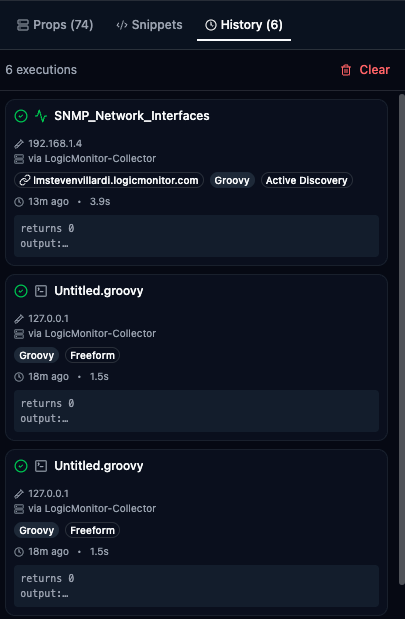
History Entry Details
Section titled “History Entry Details”Each execution entry shows:
| Field | Description |
|---|---|
| Status | Success or Error |
| Name | Tab or module name |
| Timestamp | When it was executed |
| Duration | How long it took |
| Mode | Execution mode used |
| Language | Groovy or PowerShell |
| Collector | Which collector ran it |
| Device | Target device (if set) |
| Output Preview | First few lines of output |
Viewing Full Details
Section titled “Viewing Full Details”Click View on an entry to see:
- Complete status and timing
- Portal and collector info
- Device context
- Execution mode and language
The complete script that was executed:
- Syntax highlighted
- Read-only view
- Copy functionality
Complete output from the execution:
- Raw text output
- Scroll for large outputs
- Copy entire output
For AD/Collection modes:
- Parsed instance/datapoint data
- Same format as Output Panel
Reloading Scripts
Section titled “Reloading Scripts”Load to Editor
Section titled “Load to Editor”Click Load on a history entry to:
-
Open a new tab
-
Populate with the historical script
-
Set language and mode automatically
-
Ready for editing and re-running
Portal Mismatch Warning
Section titled “Portal Mismatch Warning”If the history entry is from a different portal:
Module Binding
Section titled “Module Binding”Historical scripts from modules:
- Can restore module binding if portal matches
- Falls back to freeform if unavailable
History Management
Section titled “History Management”History Limit
Section titled “History Limit”Configure the maximum history entries:
-
Open Settings (Ctrl+,)
-
Find “History Size”
-
Set desired limit (10-500, default is 50)
-
Oldest entries removed when limit exceeded
Clearing History
Section titled “Clearing History”To clear all history:
- Click Clear button in panel
- Confirm the action
- All entries removed permanently
History Use Cases
Section titled “History Use Cases”- Debugging — Find a working historical execution, compare with current script, identify what changed
- Recovering Scripts — If you lose script content, find the last execution and load it back
- Performance Analysis — Compare execution durations across runs to identify slow executions
- Auditing — Track what was executed, check timestamps, document actions taken
What’s Stored
Section titled “What’s Stored”| Data | Stored? |
|---|---|
| Script content | Yes |
| Output | Yes |
| Collector info | Yes |
| Device info | Yes |
| Timestamp | Yes |
| Duration | Yes |
| Tab/module name | Yes |
| Portal binding | Yes |
Storage Location
Section titled “Storage Location”History is stored:
- In browser local storage
- Per-browser (not synced)
- Persists across sessions
- Subject to size limits
History Panel Actions
Section titled “History Panel Actions”| Action | Icon | Description |
|---|---|---|
| View | Eye | See full execution details |
| Load | Arrow | Load script to editor |
| Copy | Clipboard | Copy script content |
Best Practices
Section titled “Best Practices”- Regular Review — Periodically review history, export important scripts, document significant executions
- Before Clearing — Review important entries and save scripts you want to keep before clearing
- Learn from History — Review successful patterns and past decisions to improve future scripts
Privacy Considerations
Section titled “Privacy Considerations”History may contain:
- Device information
- Property values (from token substitution)
- API responses (if printed)
- Sensitive configuration data
Clear history when:
- Switching between projects
- Working on sensitive systems
- Sharing the browser/computer
Next Steps
Section titled “Next Steps” Settings Configure LMDA Composer appearance, defaults, and behavior.