
LogicModule Browser
The LogicModule Browser lets you explore all LogicModules in your portal and import their scripts into LMDA Composer for editing and testing.
Opening the Browser
Section titled “Opening the Browser”| Method | Action |
|---|---|
| Welcome Screen | Click Browse Modules or the modules icon |
| Command Palette | Press Cmd+Shift+P and type “Browse” |
| Actions Menu | Click Actions → Browse LogicModules in the toolbar |
Browser Interface
Section titled “Browser Interface”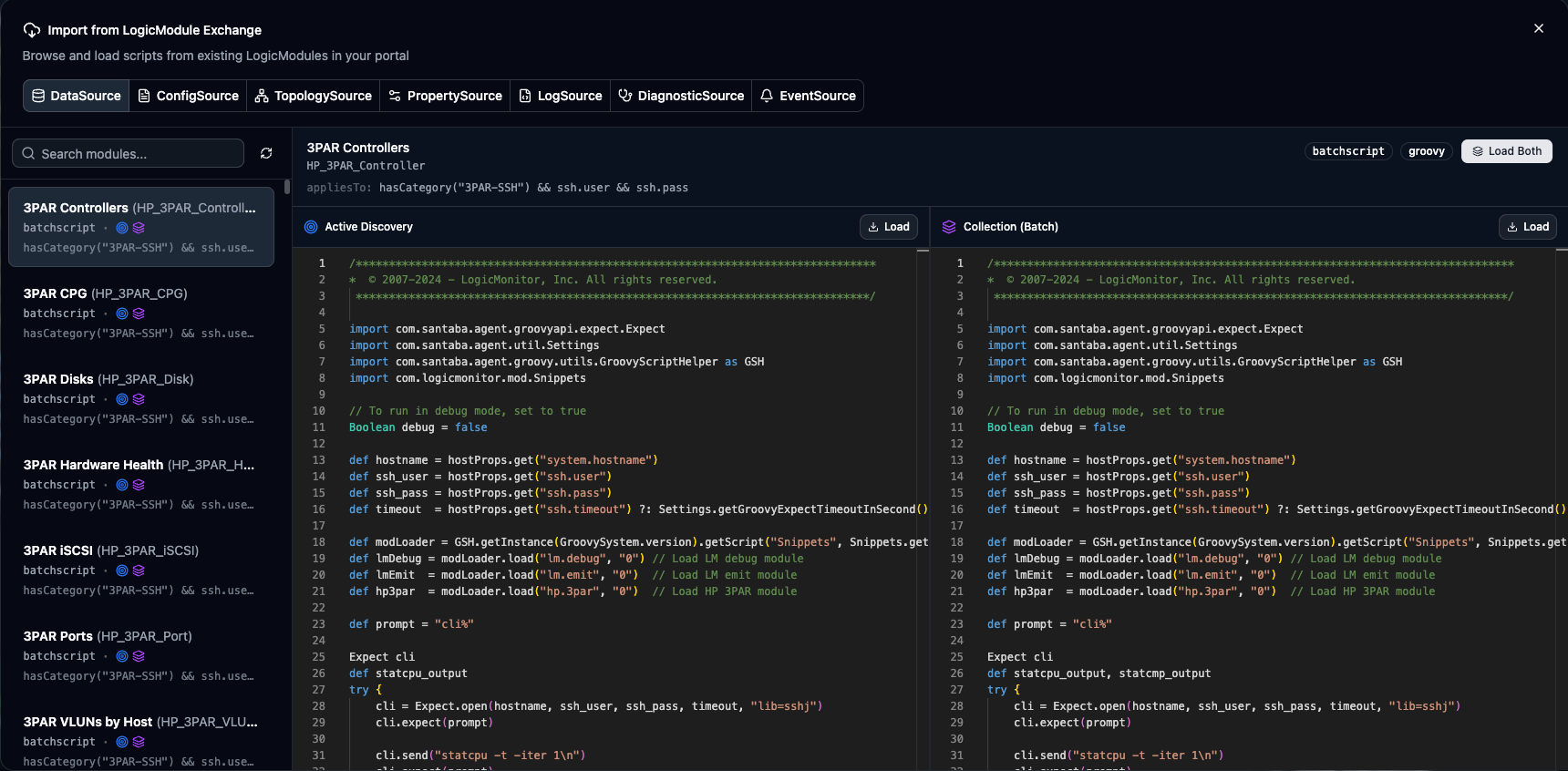
Module Type Filter
Section titled “Module Type Filter”Toggle between module types at the top of the browser:
Click a type to filter the module list. Multiple types can be selected simultaneously.
Search
Section titled “Search”Type in the search box to filter modules by:
- Module name
- Display name
- Description
Search is case-insensitive and matches partial strings.
Module List
Section titled “Module List”The left panel shows matching modules with:
- Module display name
- Module type badge
- Description preview
- Scroll to load more results (first 100 shown initially)
Previewing Scripts
Section titled “Previewing Scripts”Click a module in the list to see its available scripts:
Preview Panel
Section titled “Preview Panel”The right panel displays:
- Module Info — Name, type, and description of the selected module
- Script Selector — Choose which script to preview: Groovy, PowerShell, AD, or Pre-script
- Script Preview — Syntax-highlighted read-only view of the script content
Scripts by Module Type
Section titled “Scripts by Module Type”| Module Type | Available Scripts |
|---|---|
| DataSource | AD Script, Collection Script, Pre-script |
| ConfigSource | Collection Script |
| EventSource | Collection Script |
| PropertySource | Groovy or PowerShell |
| TopologySource | Groovy Script |
| LogSource | Filters, Log Fields, Resource Mappings (configured in Module Details) |
| DiagnosticSource | Diagnostic Script |
Loading a Script
Section titled “Loading a Script”-
Select a module from the list on the left
-
Choose the script type you want to load (AD, Collection, etc.)
-
Click Load Script to open it in a new editor tab
The script opens with:
- Module binding – linked to the portal module for committing changes
- Correct language – Groovy or PowerShell automatically selected
- Appropriate mode – Execution mode matches the script type
Creating a Copy
Section titled “Creating a Copy”To work on a script without affecting the original:
- Load the script normally
- Click Actions → Save As to save locally
- The local copy is independent of the module
Module Binding
Section titled “Module Binding”When you load a module script, the tab becomes “bound” to that module:
When loaded from a LogicModule:
- Shows a link icon on the tab
- Commit button is available to push changes
- Module name displays in the tab
- Portal binding is remembered
- Can edit module details (metadata)
Local files or new scripts:
- No link icon on the tab
- No Commit option (must bind first)
- Generic tab name
- Not associated with any portal
- Cannot edit module details
Import Options
Section titled “Import Options”Import from LogicModule Exchange (LMX)
Section titled “Import from LogicModule Exchange (LMX)”Access community modules:
-
Click Import from LMX on the welcome screen
-
Browse or search the LogicModule Exchange catalog
-
Import the module into your portal
-
Then browse and load the script using the LogicModule Browser
Direct URL Import
Section titled “Direct URL Import”You can open modules directly from LogicMonitor:
- From the Manage dropdown on a module → Open in LMDA Composer
- From the LM Exchange when viewing a module → Open in LMDA Composer
- LMDA Composer parses the link and loads the module automatically
Pagination
Section titled “Pagination”For portals with many modules:
- Initial load shows the first 100 modules
- Scroll to the bottom to load more
- “Loading more…” indicator appears during fetch
- Search filters are applied server-side for efficiency
Troubleshooting
Section titled “Troubleshooting”Best Practices
Section titled “Best Practices”- Organize Your Work — Use descriptive tab names when loading multiple scripts. Save local copies before making major changes.
- Test Module Scripts — Load the AD script first to understand instance discovery. Test with the same device the module targets.
- Making Changes — Load → Edit → Test with Run Script → Verify parsed output → Commit changes back to the portal.