
Debug Commands
The Debug Commands dialog lets you execute collector debug commands directly from LMDA Composer, including a comprehensive collector health check.
Opening Debug Commands
Section titled “Opening Debug Commands”| Method | Action |
|---|---|
| Welcome Screen | Click Debug Commands on the welcome screen |
| Keyboard Shortcut | Press Cmd+K, D to open directly |
| Actions Menu | Click Actions → Debug Commands in the toolbar |
Debug Commands Interface
Section titled “Debug Commands Interface”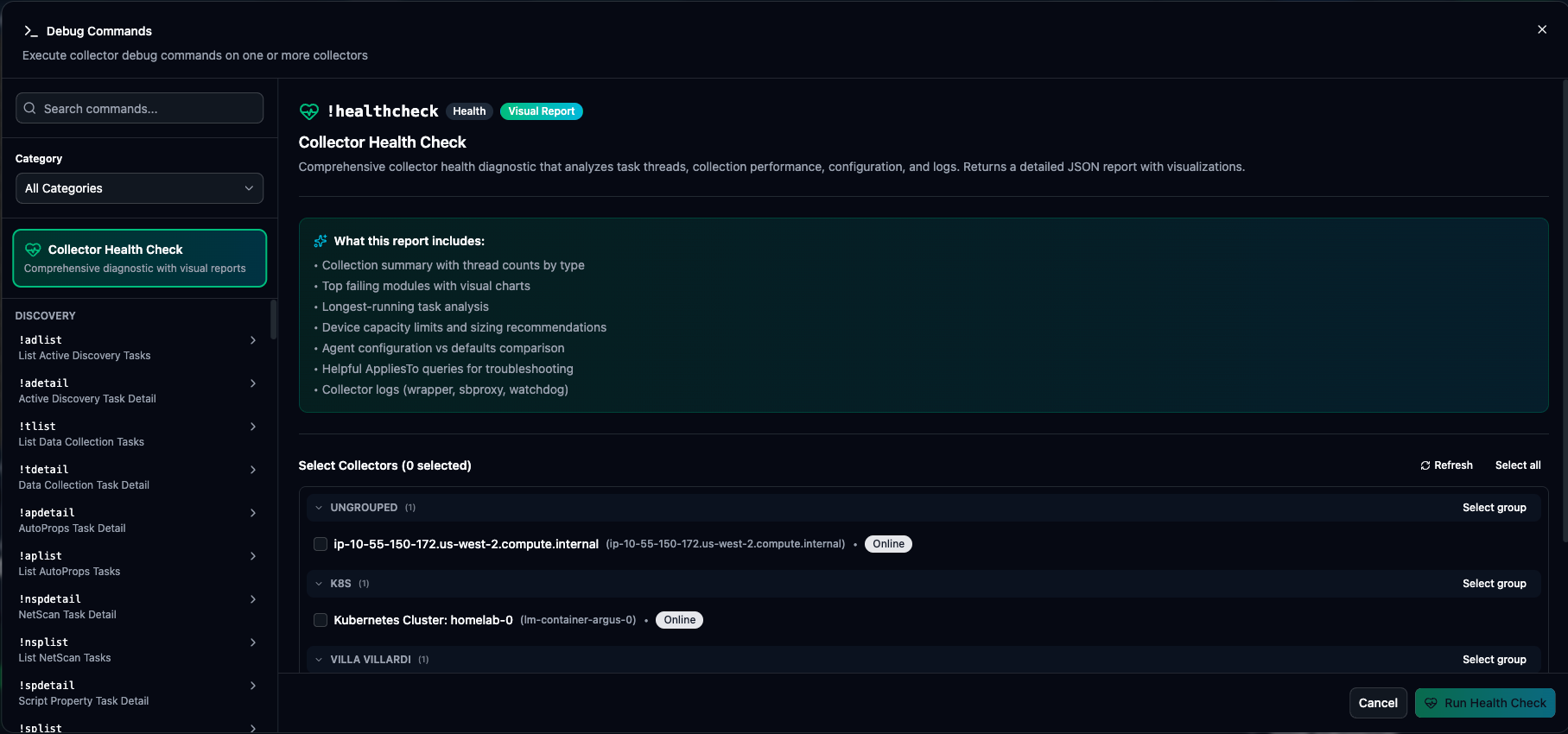
Command Search
Section titled “Command Search”Type in the search box to filter commands:
- Matches command names
- Matches descriptions
- Case-insensitive search
Category Filter
Section titled “Category Filter”| Category | Description |
|---|---|
| Discovery | Active Discovery and data collection task commands |
| System | Collector system info and configuration |
| Network | Network diagnostics and connectivity tests |
| Health | Health check and monitoring commands |
| Scripting | Script testing and execution |
| File Ops | File system operations |
| Diagnostics | Diagnostic and troubleshooting tools |
| Windows | Windows-specific commands (WMI, PowerShell) |
| Query | Protocol queries (SNMP, HTTP, etc.) |
| Task Mgmt | Task management and control |
Command List
Section titled “Command List”The filtered list shows:
- Command name
- Brief description
- Parameter indicators (if required)
Running Commands
Section titled “Running Commands”Selecting a Command
Section titled “Selecting a Command”-
Browse or search for a command
-
Click to select it—the command panel opens on the right
-
Fill in any required parameters
-
Select which collector(s) to run on
-
Click Run Command
Command Parameters
Section titled “Command Parameters”Some commands require input:
| Parameter Type | Input |
|---|---|
| Text | Free-form text input |
| Number | Numeric input |
| IP Address | IP address format |
| OID | SNMP OID format |
Selecting Collectors
Section titled “Selecting Collectors”Choose which collector(s) run the command:
- Scroll through collector groups
- Check individual collectors
- Or use Select All for a group
Multi-Collector Results
Section titled “Multi-Collector Results”When running on multiple collectors:
Results Tabs
Section titled “Results Tabs”Each collector gets its own tab showing:
- Collector name and status
- Execution duration
- Command output
Comparing Results
Section titled “Comparing Results”Switch between tabs to compare output across collectors. Useful for:
- Identifying configuration differences
- Comparing network connectivity
- Checking task loads
Exporting Results
Section titled “Exporting Results”Click Copy to copy all results, including collector identification for documentation.
Collector Health Check
Section titled “Collector Health Check”The Health Check is a comprehensive diagnostic featured prominently at the top of the dialog. The report has been redesigned in v1.5.0 with modern styling and improved data visualization.
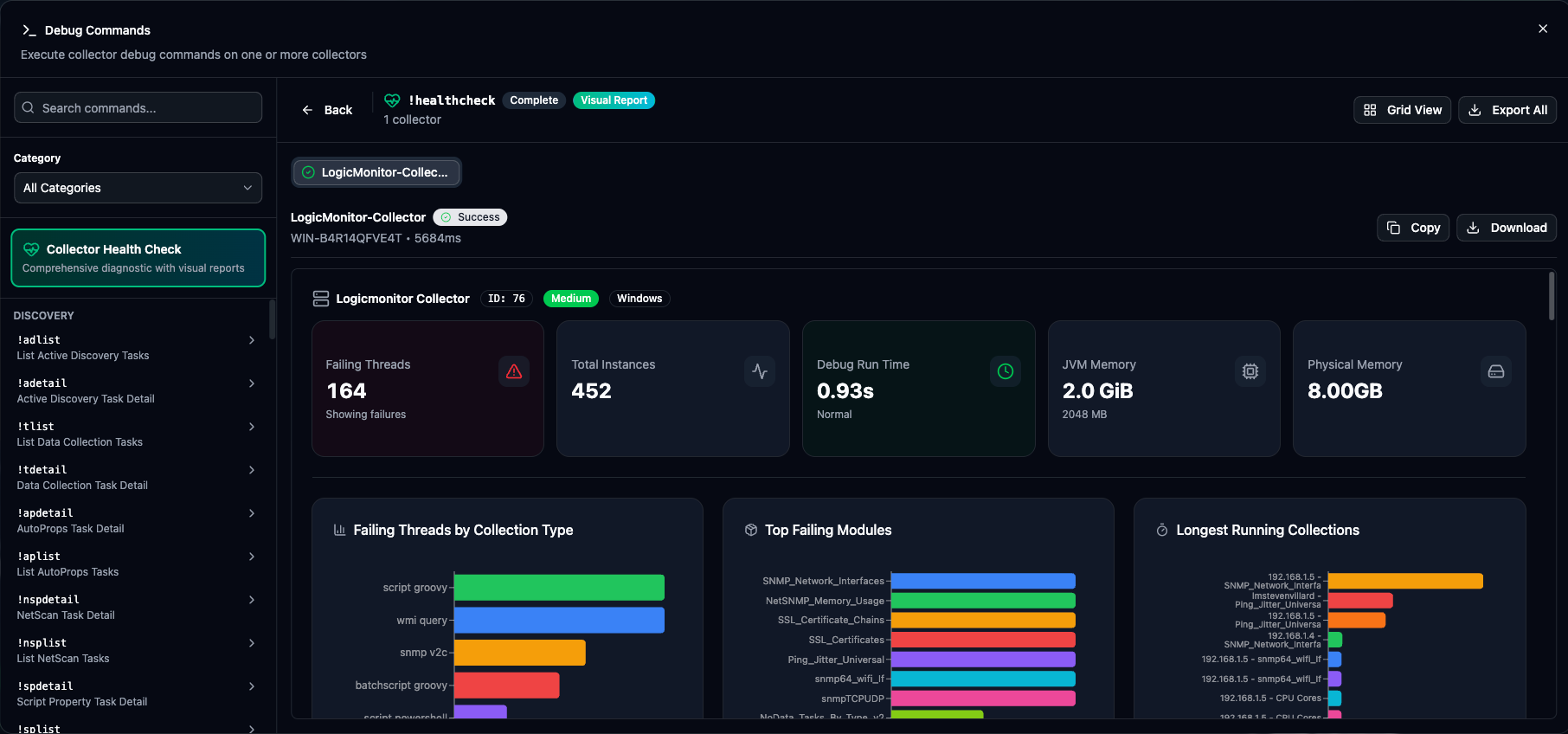
Running a Health Check
Section titled “Running a Health Check”-
Click the Health Check card at the top of the dialog
-
Select one or more collectors
-
Click Run Health Check
-
Review the comprehensive report
What It Checks
Section titled “What It Checks”- Collection Summary — Thread counts across all task types (tlist, adlist, splist, tplist, aplist)
- Top Failing Modules — Charts showing modules with the most failures
- Longest Running Tasks — Analysis of tasks taking the most time
- Device Capacity — Limits and current utilization
- Agent Config — Current configuration vs. defaults
- Collector Logs — Recent log entries and error patterns
Health Check Report
Section titled “Health Check Report”The report displays:
Summary Cards:
- Collector info (ID, size, version, platform)
- Failing threads count (color-coded by severity)
- Total instances monitored
- Debug run time
- JVM and physical memory usage
Detailed Sections:
- Collection Summary — Thread breakdown by task type
- Top Failing Modules — Modules with the most failures
- Long Running Tasks — Tasks taking the longest time
- Host Stats — System resource statistics
- Tlist Summary — Task list summary with instance counts
- Agent Config — Current vs. default configuration comparison
- Capacity Limits — Device and instance limits
- Task Lists — Detailed task breakdowns (aplist, splist, adlist, tplist)
- Process List — Running processes with resource usage
- AppliesTo Queries — Troubleshooting expressions with inline testing
- Message Results — Top recurring messages and errors
- Logs Viewer — Recent collector log entries
AppliesTo Troubleshooting
Section titled “AppliesTo Troubleshooting”The Health Check report includes AppliesTo troubleshooting queries. These are pre-built expressions that help identify common issues. You can test these queries directly from the report using inline AppliesTo testing.
Interpreting Results
Section titled “Interpreting Results”The report uses color-coded indicators for quick assessment:
| Indicator | Meaning |
|---|---|
| Green | Healthy — no issues detected |
| Yellow | Warning — review recommended |
| Red | Error — action needed |
Failing Threads:
- 0 threads — Healthy (green)
- 1-9 threads — Warning (yellow)
- 10+ threads — Error (red)
Debug Run Time:
- < 5 seconds — Normal (green)
- 5-10 seconds — Elevated (yellow), check collector load
- > 10 seconds — High (red), collector may be overloaded
Common Debug Commands
Section titled “Common Debug Commands”| Command | Purpose |
|---|---|
!ping | Test connectivity to host |
!nslookup | DNS resolution test |
!traceroute | Network path trace |
!curl | HTTP request test |
| Command | Purpose |
|---|---|
!snmpget | Get single OID value |
!snmpwalk | Walk OID tree |
!snmptable | Retrieve SNMP table |
| Command | Purpose |
|---|---|
!wmi | Execute WMI query |
!posh | Run PowerShell command |
| Command | Purpose |
|---|---|
!tasklist | List running tasks |
!taskstop | Stop a specific task |
!tlist | Task list summary |
Example Workflows
Section titled “Example Workflows”Debugging SNMP Issues
Section titled “Debugging SNMP Issues”-
Open Debug Commands and select the target collector
-
Run
!pingto verify network connectivity to the device -
Run
!snmpgetwith the device IP and a test OID (like sysName) -
If
!snmpgetfails, check community string and SNMP version -
Run
!snmpwalkto see what OIDs are available
Checking Collector Performance
Section titled “Checking Collector Performance”-
Run Health Check on the collector
-
Review memory and CPU usage in the summary
-
Check task queue depths for backlog
-
Look for stuck or long-running tasks in the task list
-
Review error messages for recurring issues
Testing Network Paths
Section titled “Testing Network Paths”-
Run
!nslookupto verify DNS resolution -
Run
!pingto check basic connectivity -
Run
!traceroutefor detailed path analysis -
Identify network bottlenecks or routing issues
Output Formats
Section titled “Output Formats”Text Output
Section titled “Text Output”Most commands return plain text:
- Formatted for readability
- Line-by-line results
- Error messages highlighted in red
Structured Output
Section titled “Structured Output”Some commands (like Health Check) return structured data:
- Rendered as formatted tables
- Summary statistics
- Expandable sections
Error Output
Section titled “Error Output”Failed commands show:
- Error message
- Exit code (if applicable)
- Troubleshooting hints
Best Practices
Section titled “Best Practices”- Before Running — Verify correct collector(s) selected. Double-check parameter values. Consider impact on production collectors.
- Interpreting Results — Compare against known good baselines. Check timestamps for currency. Look for patterns across collectors.
- Documentation — Copy results for ticketing systems. Note collector and timestamp. Compare before/after for changes.