
AppliesTo Toolbox
The AppliesTo Toolbox helps you build and test AppliesTo expressions before applying them to LogicModules. See exactly which resources match your expression.
Opening the Toolbox
Section titled “Opening the Toolbox”| Method | Action |
|---|---|
| Welcome Screen | Click AppliesTo Toolbox on the welcome screen |
| Keyboard Shortcut | Press Cmd+K, A to open directly |
| Module Details | Click the AppliesTo field when editing module details |
Interface Overview
Section titled “Interface Overview”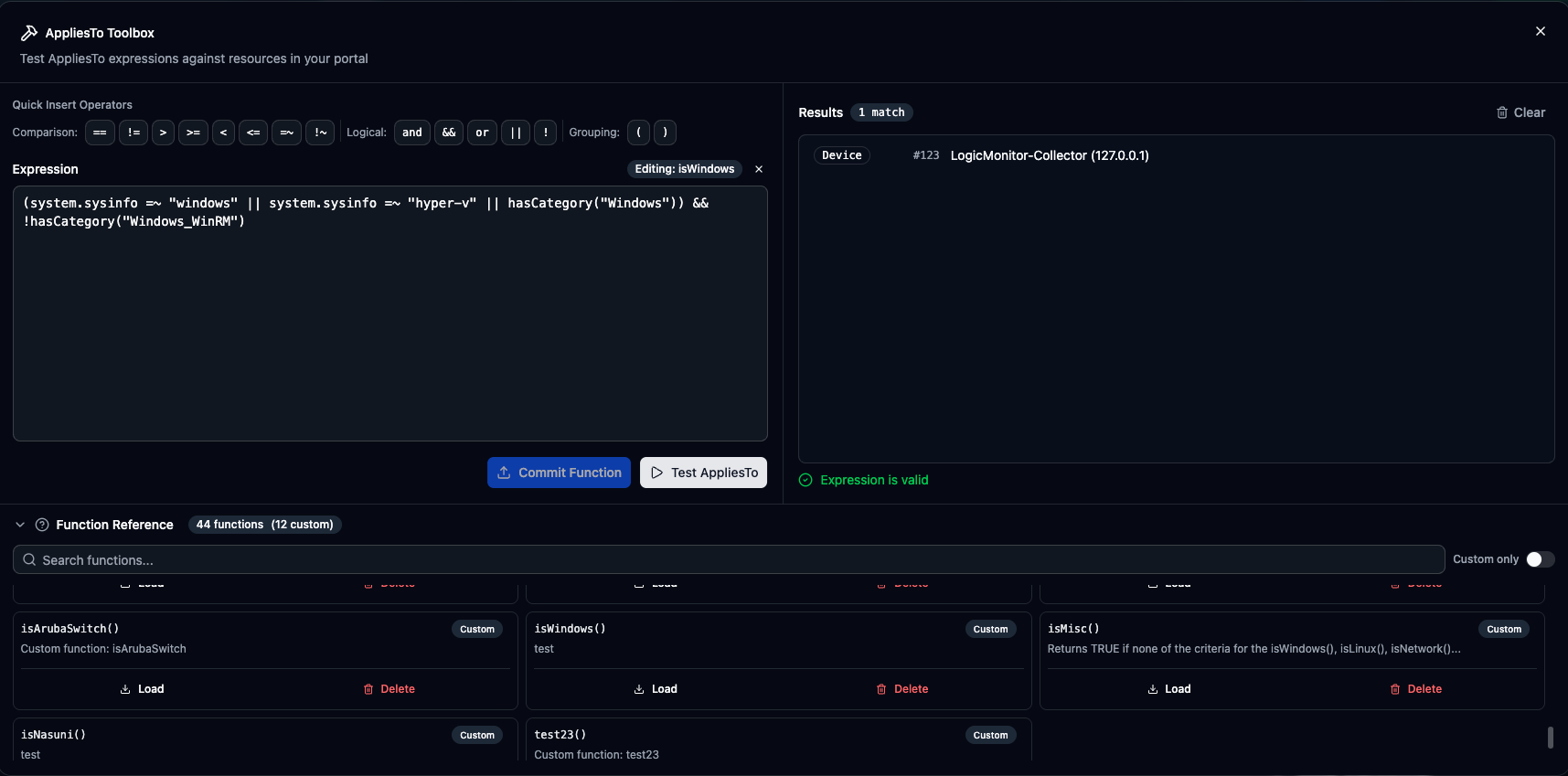
Expression Editor
Section titled “Expression Editor”The main text area for writing AppliesTo expressions:
- Multi-line support for complex expressions
- Parenthesis matching and highlighting
- Real-time syntax hints
- Undo/redo support
Quick Insert Bar
Section titled “Quick Insert Bar”Buttons for common operators:
| Operator | Usage |
|---|---|
&& or and | Logical AND — both conditions must match |
|| or or | Logical OR — either condition matches |
! or not | Logical NOT — negates the condition |
() | Grouping — control operator precedence |
== | Equals — exact value match |
!= | Not equals — value doesn’t match |
=~ | Regex match — pattern matching (case insensitive) |
!~ | Regex not match — pattern doesn’t match |
>, >=, <, <= | Comparison — numeric comparisons |
Test Button
Section titled “Test Button”Click Test AppliesTo to evaluate the expression against all resources in your portal.
Building Expressions
Section titled “Building Expressions”Basic Property Match
Section titled “Basic Property Match”Match devices with a specific property value:
system.displayname == "web-server-01"Wildcard Matching
Section titled “Wildcard Matching”Use =~ for pattern matching with regex:
system.displayname =~ "web-.*"Multiple Conditions
Section titled “Multiple Conditions”Combine with AND/OR:
// Devices that are Linux AND in Productionsystem.sysinfo =~ "Linux" && system.staticgroups =~ "Production"
// Devices that are either routers or switchessystem.sysoid =~ "1.3.6.1.4.1.9" || system.categories =~ "switch"
Grouping
Section titled “Grouping”Use parentheses for complex logic:
(system.sysinfo =~ "Linux" || system.sysinfo =~ "Windows")&& system.staticgroups =~ "Monitored"Function Calls
Section titled “Function Calls”Use built-in and custom functions:
hasCategory("Windows") && !hasCategory("test")Function Reference
Section titled “Function Reference”Click Function Reference to expand the available functions panel.
Functions are organized by category:
| Category | Functions |
|---|---|
| Basic | true(), false() |
| Properties | exists(), getPropValue(), getCollectorVersion() |
| Categories | hasCategory() |
| Arrays | contains(), join() |
| Strings | startsWith() |
| Math | sum() |
| Device Types | isDevice(), isCollectorDevice() |
| Cloud Services | isAWSService(), isAzureService(), isGCPService() |
| Operating Systems | isWindows(), isLinux(), isUnix(), isSolaris(), isFreebsd() |
| Infrastructure | isNetwork(), isStorage(), isVirtualization(), isMisc() |
| Vendors | isCisco(), isF5(), isNetApp(), isNetscaler(), isArubaSwitch() |
| Features | isNetflow(), isK8sPod() |
Click any function in the reference panel to see its syntax, parameters, and examples.
Custom AppliesTo functions are reusable expressions defined in your portal:
// Instead of:system.sysinfo =~ "Linux" && hasCategory("server") && system.staticgroups =~ "Production"
// Use a custom function:isLinuxProductionServer()
Creating Custom Functions
Section titled “Creating Custom Functions”- Write your expression in the toolbox
- Click Save as Function
- Enter a function name (e.g.,
isLinuxProductionServer) - Add a description
- Click Save
The function is saved to your LogicMonitor portal and available immediately.
Filtering Functions
Section titled “Filtering Functions”Use the Show only custom toggle to filter the function list to show only your custom functions, hiding the built-in ones.
Inserting Functions
Section titled “Inserting Functions”-
Find the function in the reference panel
-
Click the Insert button next to it
-
Function is added at cursor position
-
Fill in the arguments
Custom Functions
Section titled “Custom Functions”Managing Custom Functions
Section titled “Managing Custom Functions”- Edit Function — Find the function → Click Load → Modify expression → Click Update Function
- Delete Function — Find the function → Click delete icon → Confirm deletion
Testing Results
Section titled “Testing Results”Results Display
Section titled “Results Display”After clicking Test AppliesTo, results show matching resources:
| Column | Description |
|---|---|
| ID | Resource ID |
| Type | Device, Service, etc. |
| Name | Display name |
| Hostname | System hostname (devices only) |
Match Count
Section titled “Match Count”The header shows total matches: “15 resources match”
Result States
Section titled “Result States”| State | Description |
|---|---|
| Matches Found | Resources matching your expression are listed |
| No Matches | Expression is valid but no resources match |
| Syntax Error | Expression has errors (see error display) |
Expression Syntax Errors
Section titled “Expression Syntax Errors”Error Display
Section titled “Error Display”Invalid expressions show an error message:
- Red error banner
- Description of the issue
- Approximate location hint
Common Errors
Section titled “Common Errors”| Error | Cause | Fix |
|---|---|---|
| Unexpected token | Missing operator | Add && or || between conditions |
| Unclosed string | Missing quote | Close all string literals |
| Unknown function | Typo in function name | Check spelling in reference |
| Invalid regex | Bad regex pattern | Validate regex syntax |
Autocomplete
Section titled “Autocomplete”The editor provides autocomplete suggestions:
Property Names
Section titled “Property Names”Start typing a property name to see suggestions:
system.shows system propertiesauto.shows auto-properties- Custom property prefixes
Functions
Section titled “Functions”Type the start of a function name to see matching functions.
Activating Autocomplete
Section titled “Activating Autocomplete”Autocomplete activates automatically, or press Ctrl+Space to trigger manually.
Best Practices
Section titled “Best Practices”- Start Simple — Begin with a single condition. Verify it matches expected resources. Add conditions one at a time, testing after each addition.
- Use Parentheses — Complex expressions benefit from explicit grouping:
(A && B) || Cis clearer thanA && B || C. - Test Edge Cases — Verify resources that should match do, and resources that shouldn’t don’t. Check boundary conditions.
- Document Logic — Use the description field for custom functions to explain the logic for future reference.
Integration with Module Details
Section titled “Integration with Module Details”When editing module details:
-
Click the AppliesTo field in the module details editor
-
The toolbox opens with the current expression pre-loaded
-
Modify and test your expression
-
Save to update the module’s AppliesTo