
Module Lineage
Module Lineage displays the release history of LogicMonitor’s core modules, showing previous versions published to the Exchange.
What Is Module Lineage?
Section titled “What Is Module Lineage?”Lineage provides visibility into how LogicMonitor has updated and improved their core modules over time:
- Exchange History — View all versions LogicMonitor has published for a core module
- Release Notes — See what LogicMonitor changed in each release
- Version Comparison — Compare different Exchange releases side-by-side
- Update Tracking — Identify what’s new in the latest Exchange version
- Script Restoration — Restore a historical version to your editor
When Is Lineage Available?
Section titled “When Is Lineage Available?”Lineage is only available for LogicMonitor core modules that have been published to the Exchange. This includes:
- DataSources from the LogicMonitor Exchange
- ConfigSources, PropertySources, EventSources, and TopologySources from LM
- Any module with an Exchange-published history
Opening Lineage View
Section titled “Opening Lineage View”| Method | Action |
|---|---|
| Toolbar | Click the View Lineage button in the toolbar |
| Command Palette | Press Ctrl+K and type “Lineage” |
Lineage Dialog
Section titled “Lineage Dialog”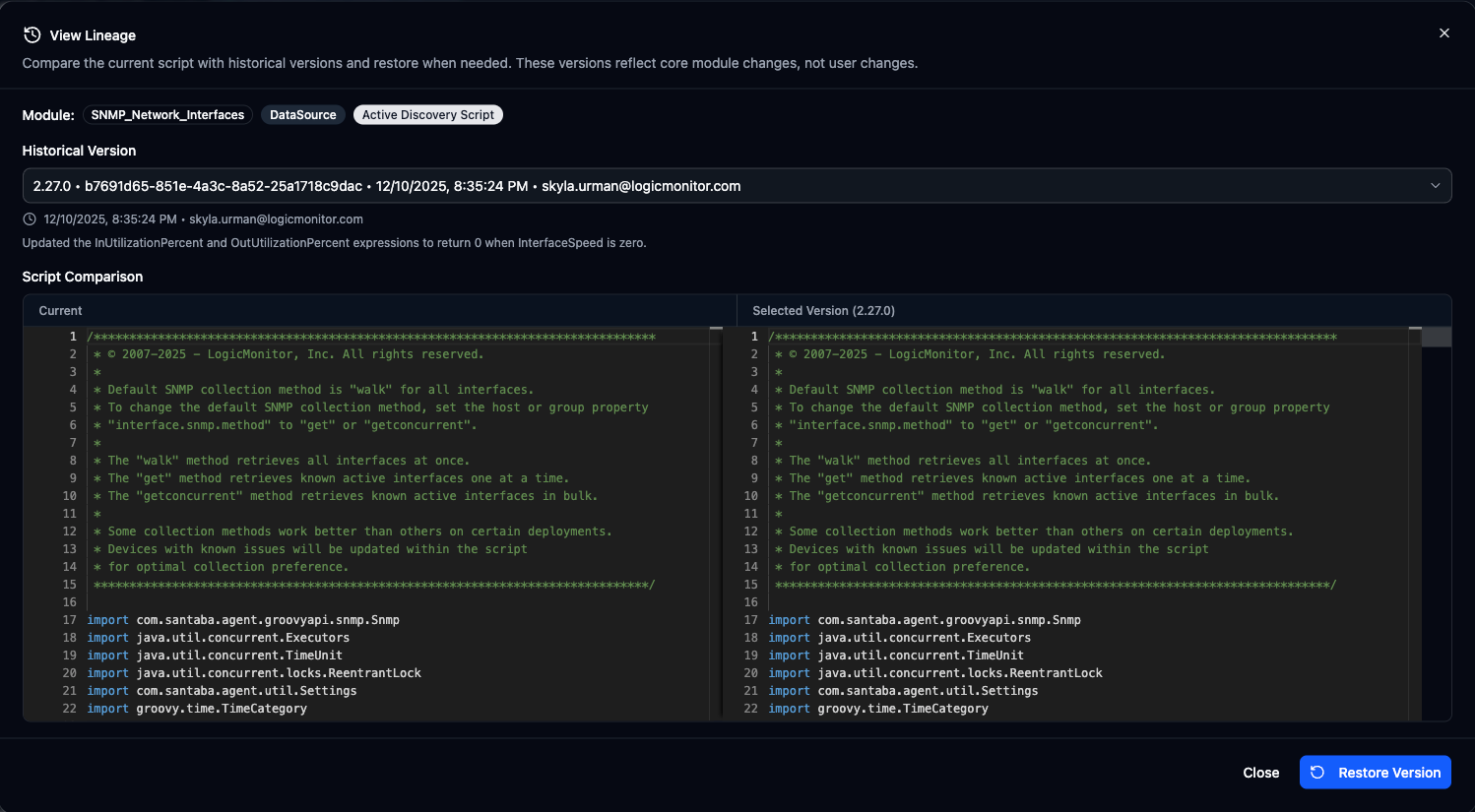
Version Selector
Section titled “Version Selector”The dropdown at the top shows all Exchange versions:
| Field | Description |
|---|---|
| Version | LogicMonitor’s release version number |
| ID | Unique locator identifier |
| Date | When LogicMonitor published this version |
| Author | Who published the version |
Versions are sorted newest first.
Version Details
Section titled “Version Details”Select a version to see:
- LogicMonitor’s release notes
- The script content from that version
- Side-by-side diff comparison with your current script
Diff Viewer
Section titled “Diff Viewer”The diff viewer shows changes between your current script and the selected historical version:
| Indicator | Meaning |
|---|---|
| + | Added lines (green background) |
| - | Removed lines (red background) |
| Gray | Unchanged context |
Restoring a Version
Section titled “Restoring a Version”You can restore any historical version to your editor:
-
Open the Lineage dialog
-
Select the version you want to restore from the dropdown
-
Review the diff to understand what will change
-
Click Restore to replace your current script with the historical version
-
The script content is updated in your editor (not yet committed)
-
Review the changes and commit when ready
Use Cases
Section titled “Use Cases”Checking for Updates
Section titled “Checking for Updates”Compare your current module version against the latest Exchange release to see what LogicMonitor has improved:
-
Open the module in LMDA Composer
-
View Lineage
-
Compare your version against the latest Exchange version
-
Decide whether to adopt the updates
Understanding Exchange Changes
Section titled “Understanding Exchange Changes”When LogicMonitor releases a new version, use Lineage to understand:
- What bugs were fixed
- What new features were added
- What breaking changes might affect your customizations
Reference Implementation
Section titled “Reference Implementation”If you’ve customized a module and need to see the “original” version:
-
Open Lineage for the module
-
Find the Exchange version your module was based on
-
View the original script content
-
Compare against your customizations
Limitations
Section titled “Limitations”- No User History — Lineage does not track changes you make to modules. There’s no way to view or revert to previous versions of your own edits.
- Exchange Only — Only modules with Exchange history have Lineage data. Custom modules created from scratch won’t have Lineage.
- Script-Level Only — Lineage shows script content history, not metadata changes.
Best Practices
Section titled “Best Practices”- Check Before Customizing — Review the latest Exchange version before making changes to understand the current baseline
- Track Your Baseline — Note which Exchange version your customization is based on to simplify future comparisons
- Review Updates Regularly — Periodically check if LogicMonitor has released updates that might benefit your environment
- Use Restore Carefully — Remember that restoring replaces your entire script, so back up any custom changes first