
Quick Start
This guide walks you through connecting to your LogicMonitor portal and running your first script.
Getting Started
Section titled “Getting Started”-
Log into LogicMonitor
Section titled “Log into LogicMonitor”Open a browser tab and log into your LogicMonitor portal (e.g.,
https://yourcompany.logicmonitor.com). -
Open LMDA Composer
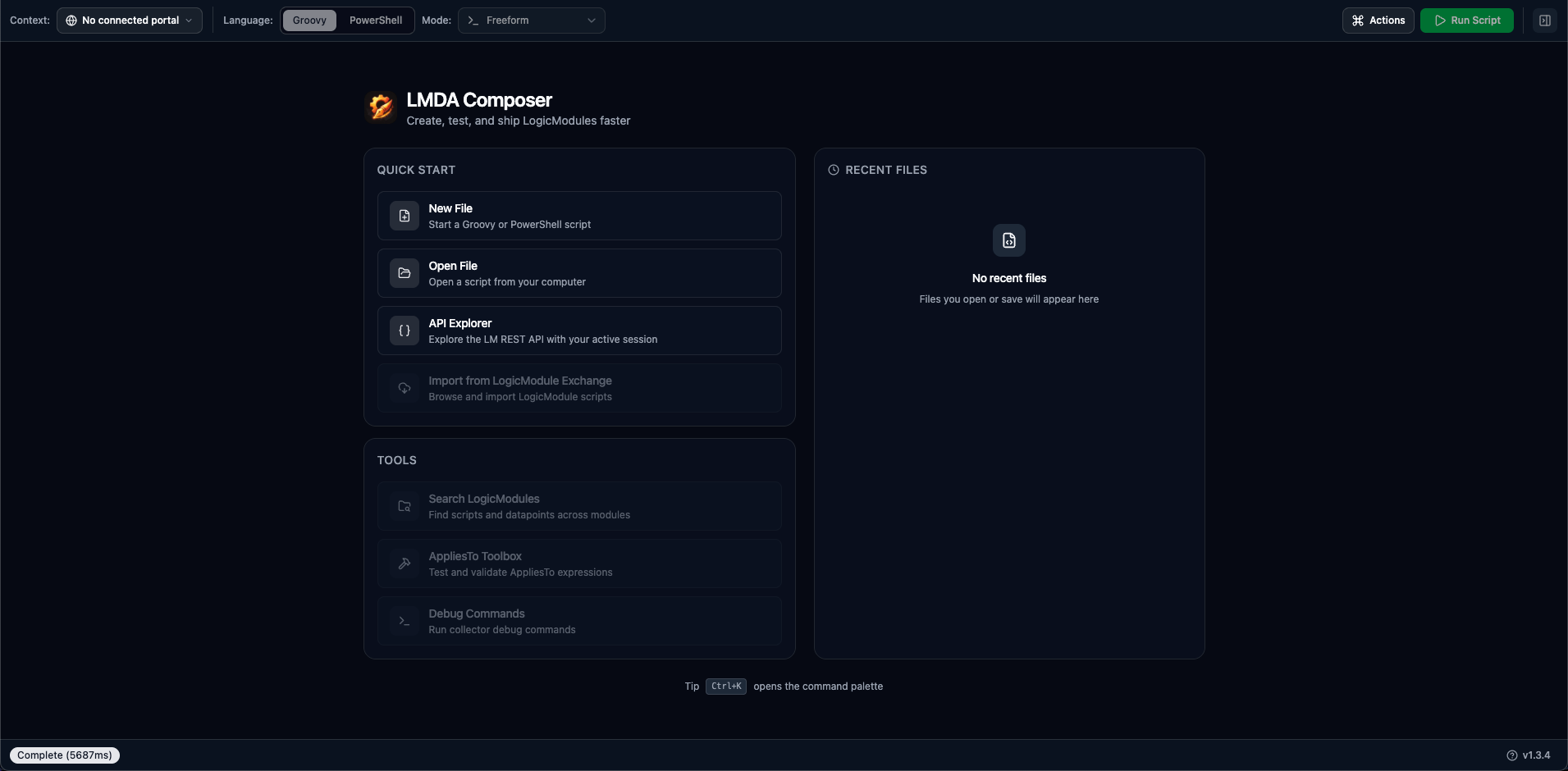
Section titled “Open LMDA Composer”Click the LMDA Composer icon in your browser toolbar. The composer opens in a new tab displaying the welcome screen.
-
Select Your Context
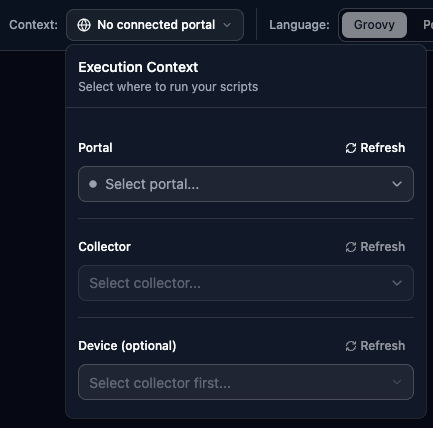
Section titled “Select Your Context”Before running a script, configure your execution context using the toolbar dropdowns:
- Portal — Select your LogicMonitor portal from detected sessions (green indicator = connected)
- Collector — Choose which collector runs your scripts (only online collectors can execute)
- Device — Optional. Select a device if your script needs host properties like
system.hostname
-
Write Your First Script
Section titled “Write Your First Script”Click New Script on the welcome screen, or press Ctrl+K, N / ⌘+K, N to create a new script tab.
Try this simple script:
println "Hello from LMDA Composer!"println "Current time: " + new Date()return 0 -
Run the Script
Section titled “Run the Script”Click the Run Script button or press Ctrl+Enter / ⌘+Enter.
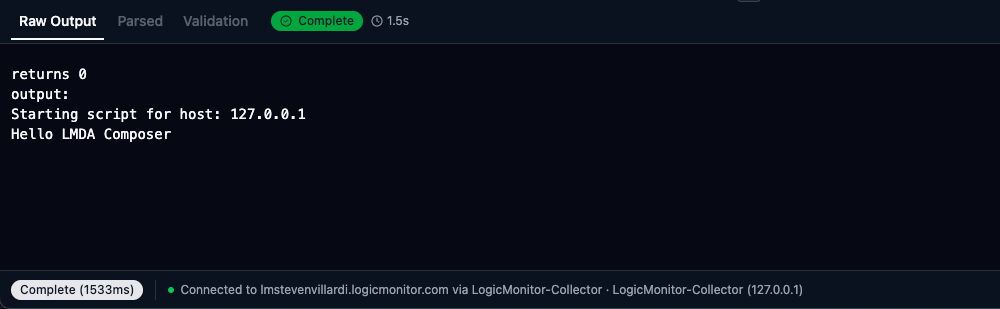
Watch the output appear in the Output Panel below the editor. A green “Complete” badge indicates successful execution.
Understanding the Output
Section titled “Understanding the Output”The Output Panel provides three views depending on your execution mode:
The complete text output from your script, exactly as returned by the collector.
Structured view showing:
- AD Mode — Discovered instances in a table
- Collection Mode — Datapoints with values
- Batch Mode — Grouped datapoints by instance
Errors and warnings based on the current mode’s output format requirements. Green checkmark means all output is valid.
Alternative: Create a LogicModule
Section titled “Alternative: Create a LogicModule”Instead of a standalone script, you can create a complete LogicModule using the guided wizard:
- Click New LogicModule on the welcome screen (requires portal connection)
- Choose your module type (DataSource, ConfigSource, PropertySource, etc.)
- Configure basic info, script settings, and requirements
- The wizard creates a properly structured module ready for development