
Interface Overview
LMDA Composer provides a focused workspace designed specifically for LogicMonitor script development. This guide walks through the main interface components.
Workspace Layout
Section titled “Workspace Layout”The interface is organized into distinct areas, each serving a specific purpose:
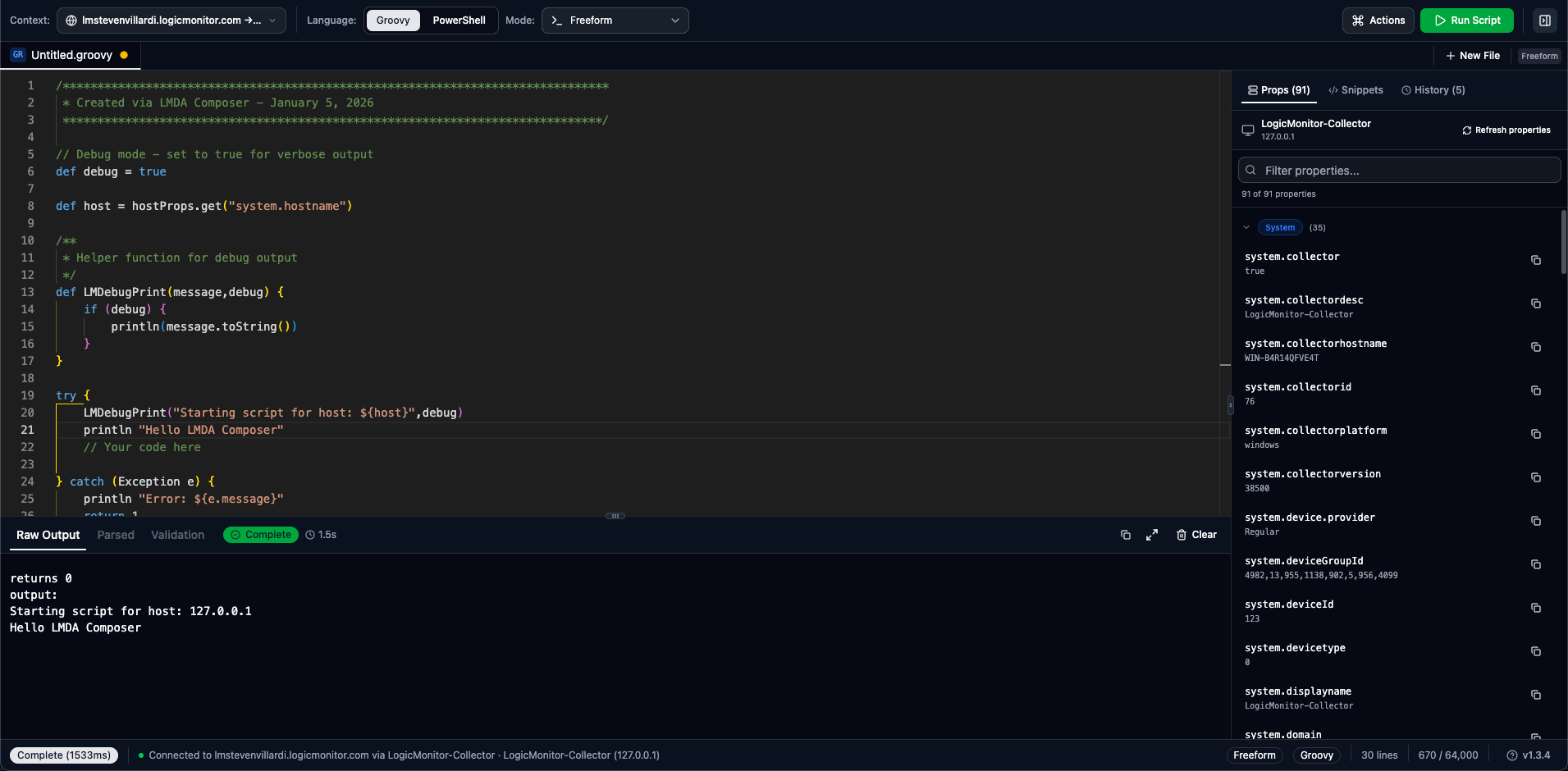
Toolbar
Section titled “Toolbar”The toolbar contains context selection and primary actions.

Context Selection
Section titled “Context Selection”- Portal — Your LogicMonitor account (green indicator when connected)
- Collector — Where scripts execute (only online collectors available)
- Device — Target for property access (optional)
Script Configuration
Section titled “Script Configuration”- Language — Toggle between Groovy and PowerShell
- Mode — Freeform, AD, Collection, or Batch
Module Actions
Section titled “Module Actions”- Lineage — View Exchange release history
- Details — Edit module metadata, datapoints, and settings
- Commit — Push changes back to LogicMonitor
Execute
Section titled “Execute”- Run Script — Execute on selected collector
- Actions Menu — Save, export, import options
Tab Bar
Section titled “Tab Bar”Manage multiple open files and module scripts.
| Feature | Description |
|---|---|
| Multiple Tabs | Work on multiple scripts simultaneously |
| Dirty Indicator | Dot appears on tabs with unsaved changes |
| Language Badge | GR for Groovy, PS for PowerShell |
| Module Binding | Link icon indicates tabs bound to a LogicModule |
Tab Actions
Section titled “Tab Actions”Right-click any tab for additional options:
- Rename tab
- Close tab / Close others / Close all
- Copy tab name
Code Editor
Section titled “Code Editor”A professional editing experience powered by the Monaco editor.
| Feature | Description |
|---|---|
| Syntax Highlighting | Full highlighting for Groovy and PowerShell |
| Smart Editing | Bracket matching, auto-indentation, code folding, multiple cursors |
| Find & Replace | Ctrl+F — supports regex and case-sensitive matching |
| Go to Line | Ctrl+G — jump to specific line numbers |
Output Panel
Section titled “Output Panel”View script execution results with parsed output and validation.

Complete text output exactly as returned by the collector. Preserves formatting and line breaks.
Structured view based on mode:
- AD Mode — Discovered instances in a sortable table
- Collection — Datapoints with numeric values
- Batch — Grouped by instance (wildvalue)
Real-time validation against mode-specific rules:
- Green checkmark = All output valid
- Yellow warning = Warnings present
- Red X = Errors found
For TopologySource scripts, displays a visual network graph of discovered topology.
Header Controls
Section titled “Header Controls”The output panel header includes:
- Execution Status — Success, error, or running indicator
- Duration — How long the script took to execute
- Copy — Copy output to clipboard
- Fullscreen — Expand output panel
- Clear — Clear current output
Right Sidebar
Section titled “Right Sidebar”A collapsible panel with additional tools. Toggle with Ctrl+B / ⌘+B.
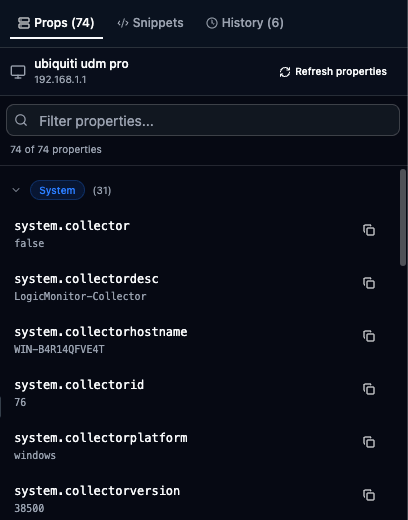
View device properties when a device is selected:
- Searchable property list
- Click property name to copy
- Grouped by type (system, custom, auto, inherited)
Access code templates and patterns:
- Built-in snippets for common tasks
- Your custom user snippets
- Filter by language and type
- Click to insert at cursor
Review past script executions:
- Timestamp and duration
- Success/error status
- Click to reload script
- View full execution details
Status Bar
Section titled “Status Bar”The bottom bar shows current state at a glance.
Left Side:
- Execution status indicator
- Portal connection status
- Collector name (online/offline)
- Selected device name
Right Side:
- Current mode badge
- Language badge
- Line and character count
- Help popup with shortcuts
Welcome Screen
Section titled “Welcome Screen”When no tabs are open, the welcome screen provides quick actions organized into three categories:
Create New
Section titled “Create New”- New Script — Create a blank Groovy or PowerShell file
- New LogicModule — Launch the guided wizard to create a module (requires portal connection)
Open Existing
Section titled “Open Existing”- Open File — Load a script from your computer
- Open Module Folder — Open a previously saved module directory
Import from LMX
Section titled “Import from LMX”- Browse Modules — Import scripts from your portal’s LogicMonitor Exchange
The welcome screen also shows:
- Recent Files — Quick access to recently opened files and module directories
- Workflow Steps — Getting started guidance for new users
- Key Features — Overview of LMDA Composer capabilities
Keyboard Shortcuts
Section titled “Keyboard Shortcuts”LMDA Composer uses chord-based shortcuts to avoid conflicts with browser extensions.
| Shortcut | Action |
|---|---|
| Cmd+Shift+P | Command palette |
| Cmd+Enter | Run script |
| Cmd+B | Toggle sidebar |
| Cmd+S | Save file |
| Cmd+, | Open settings |
| Cmd+K, N | New file |
| Cmd+K, F | Open module folder |