
Script Editor
LMDA Composer uses the Monaco editor—the same editor that powers VS Code—providing a professional coding experience for Groovy and PowerShell scripts.
Language Support
Section titled “Language Support”Groovy is the primary scripting language for LogicMonitor modules:
- Full syntax highlighting for keywords, strings, and comments
- Bracket matching and auto-closing
- Code folding for classes and methods
- String interpolation highlighting (
${variable}) - GString and regular expression support
// Example Groovy scriptdef host = hostProps.get("system.hostname")def result = Snmp.get(host, "1.3.6.1.2.1.1.5.0")println "SysName=${result}"return 0PowerShell support for Windows-based collection:
- Cmdlet and function highlighting
- Variable highlighting (
$variable) - String and here-string support
- Comment block support
# Example PowerShell script$hostname = "##SYSTEM.HOSTNAME##"$cpu = Get-Counter '\Processor(_Total)\% Processor Time'Write-Host "CpuUsage=$($cpu.CounterSamples.CookedValue)"exit 0Switching Languages
Section titled “Switching Languages”Use the language toggle in the toolbar to switch between Groovy and PowerShell:
- Click the language badge (Groovy or PowerShell) in the toolbar
- If you have unsaved changes, a confirmation dialog appears
- Confirm to switch and reset to the default template, or cancel to keep your current script
Editor Features
Section titled “Editor Features”| Feature | Description |
|---|---|
| Find & Replace | Ctrl+F to search. Supports regex, case-sensitive, and whole word matching. Ctrl+H for replace. |
| Multiple Cursors | Alt+Click to add cursors. Ctrl+D selects next occurrence. Edit multiple locations at once. |
| Code Folding | Click fold icons in the gutter to collapse methods, classes, and comment blocks. |
| Go to Line | Ctrl+G to jump to any line number. Essential for navigating large scripts. |
| Bracket Matching | Matching brackets are highlighted automatically when cursor is adjacent. |
| Auto-indentation | Smart indentation based on code structure. |
Keyboard Shortcuts
Section titled “Keyboard Shortcuts”| Shortcut | Action |
|---|---|
| Ctrl+F | Find |
| Ctrl+H | Find & Replace |
| Ctrl+G | Go to Line |
| Ctrl+D | Select Next Occurrence |
| Ctrl+/ | Toggle Comment |
| Ctrl+] | Indent Line |
| Ctrl+[ | Outdent Line |
| Alt+↑/↓ | Move Line Up/Down |
PowerShell Token Substitution
Section titled “PowerShell Token Substitution”When writing PowerShell scripts, you can use LogicMonitor’s token syntax to access device properties:
$hostname = "##SYSTEM.HOSTNAME##"$displayName = "##SYSTEM.DISPLAYNAME##"$customProp = "##auto.custom.property##"When you run the script, LMDA Composer:
- Detects
##PROPERTY.NAME##patterns in your code - Fetches device properties from the selected device
- Substitutes tokens with actual property values
- Executes the script with substituted values
Editor Settings
Section titled “Editor Settings”Customize the editor experience in Settings (Ctrl+, / Cmd+,):
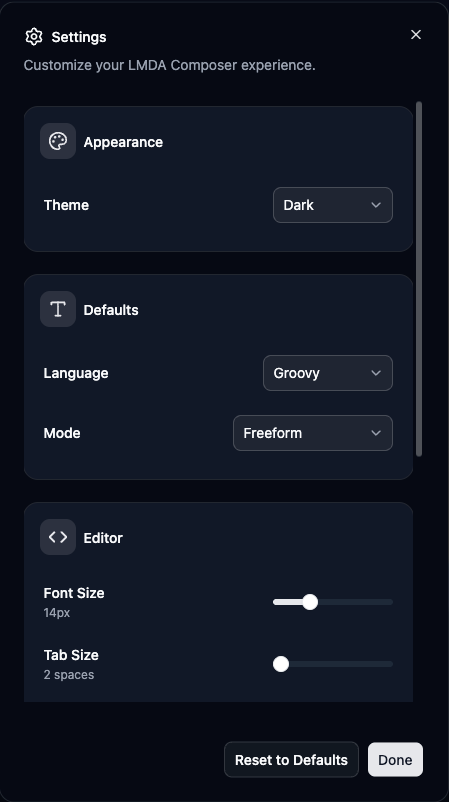
| Setting | Description |
|---|---|
| Font Size | Adjust from 10px to 24px for comfortable reading on any display |
| Tab Size | Set indentation width from 2 to 8 spaces (default: 2) |
| Word Wrap | Wrap long lines within the viewport instead of horizontal scrolling |
| Minimap | Toggle the code overview minimap on the right side of the editor |
Working with Tabs
Section titled “Working with Tabs”Each open file gets its own tab in the tab bar.
Creating New Files
Section titled “Creating New Files”- Click New Script on the welcome screen
- Press Ctrl+K, N / Cmd+K, N
Opening Files
Section titled “Opening Files”- Click Open File to load from your local disk
- Use Import from LMX to load scripts from portal modules
- Open a saved module folder with Open Module Folder
Managing Tabs
Section titled “Managing Tabs”- Click the × on any tab to close it
- Right-click a tab for options: Rename, Close, Close Others, Close All
- Tabs with unsaved changes show a dot indicator
- Press Ctrl+W / Cmd+W to close the active tab
Character Limit
Section titled “Character Limit”LogicMonitor scripts have a 64,000 character limit. The status bar displays your current count with visual warnings:
| Character Count | Status |
|---|---|
| < 50,000 | Normal |
| 50,000+ | Warning |
| 60,000+ | Alert |
| > 64,000 | Error — Cannot save |
Next Steps
Section titled “Next Steps” Execution Modes Learn about Freeform, Active Discovery, Collection, and Batch modes.