
Context Selection
Before running scripts, configure your execution context: which portal to use, which collector to run on, and optionally which device to target.
The Context Dropdown
Section titled “The Context Dropdown”Click the Context button in the toolbar to open the selection dropdown:
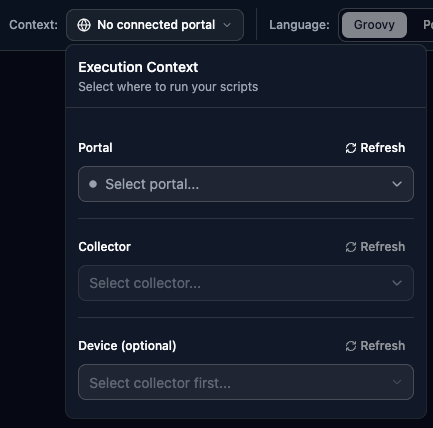
| Component | Description |
|---|---|
| Portal | Your LogicMonitor account. Select from detected active sessions. |
| Collector | Where scripts execute. Only online collectors can run code. |
| Device | Target for property access. Optional but needed for hostProps. |
Portal Selection
Section titled “Portal Selection”How Portals Are Detected
Section titled “How Portals Are Detected”LMDA Composer automatically finds your LogicMonitor sessions:
- Scans open browser tabs for
*.logicmonitor.comURLs - Groups tabs by portal hostname
- Validates active authentication sessions
- Displays available portals in the dropdown
Portal Status Indicators
Section titled “Portal Status Indicators”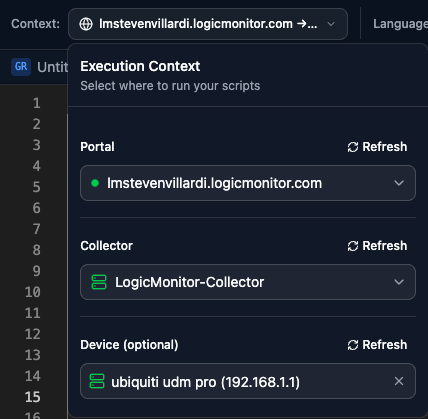
| Status | Description |
|---|---|
| Connected | Active session, ready to use |
| Disconnected | Session expired or logged out |
| Warning | Connection issue detected |
Switching Portals
Section titled “Switching Portals”- Open the Context dropdown
- Select a different portal from the list
- Collector and device lists refresh automatically
Session Expiration
Section titled “Session Expiration”If your LogicMonitor session expires:
- The portal shows a red Disconnected indicator
- Script execution fails with authentication errors
- Log in again in another browser tab
- Click Refresh in the Context dropdown to detect the new session
Collector Selection
Section titled “Collector Selection”Available Collectors
Section titled “Available Collectors”After selecting a portal, the collector list populates:
- Grouped by collector group
- Shows collector description and hostname
- Indicates online/offline status with color badges
Collector Status
Section titled “Collector Status”| Status | Can Execute? | Description |
|---|---|---|
| Online | Yes | Collector is connected and ready |
| Offline | No | Collector is not responding |
| Warning | Check | Collector health issues |
Selecting a Collector
Section titled “Selecting a Collector”- Click the Collector field in the Context dropdown
- Search by name, description, or hostname
- Click to select your target collector
- Device list refreshes for the selected collector
Collector Groups
Section titled “Collector Groups”Collectors are organized by their assigned groups:
- Ungrouped collectors appear first
- Groups display in alphabetical order
- Expand/collapse groups for easier navigation in large environments
Device Selection
Section titled “Device Selection”Why Select a Device?
Section titled “Why Select a Device?”Selecting a device enables:
- Host Properties — Access
hostProps.get("property.name")in your scripts - Token Substitution — PowerShell
##TOKEN##patterns resolve to device properties - Instance Properties — Collection modes can access instance-specific data
Device List
Section titled “Device List”The device dropdown shows devices assigned to the selected collector:
- Search by display name or system hostname
- Shows both display name and
system.hostname - Limited to devices monitored by the selected collector
Selecting a Device
Section titled “Selecting a Device”- Ensure a collector is selected first
- Click the Device field
- Search or browse the device list
- Click to select your target device
Clearing Device Selection
Section titled “Clearing Device Selection”Click the × button to clear the device selection. Useful when:
- Running freeform scripts without device context
- Testing scripts that should work without device properties
- Switching between device-specific and general tests
Context Persistence
Section titled “Context Persistence”LMDA Composer remembers your selections across sessions:
| Setting | Persisted? | Scope |
|---|---|---|
| Portal | Yes | Global (last used) |
| Collector | Yes | Per portal |
| Device | Yes | Per session |
When you return to the composer, your last portal and collector are automatically restored.
Context and Tabs
Section titled “Context and Tabs”Each tab can have different context settings:
- Tab Memory — Tabs remember their execution context. Switching tabs may update the toolbar display.
- Portal Binding — Tabs opened from LogicModules are “bound” to their source portal.
Portal Binding
Section titled “Portal Binding”When you open a script from a LogicModule:
- The tab is bound to that portal
- A link icon appears on the tab
- Commit operations use the bound portal
- A warning appears if the active portal doesn’t match
Refreshing Data
Section titled “Refreshing Data”Refresh Portals
Section titled “Refresh Portals”Click the refresh icon in the portal section to:
- Rescan for open LogicMonitor tabs
- Update session status indicators
- Detect newly opened portals
Refresh Collectors
Section titled “Refresh Collectors”Press Ctrl+R or click refresh to:
- Reload the collector list from the portal
- Update online/offline status
- Reflect collector configuration changes
Refresh Devices
Section titled “Refresh Devices”Device lists refresh automatically when:
- Collector selection changes
- You manually trigger a refresh with the button