
Variables & History
The API Explorer includes environment variables for reusable values, JSON path helpers to extract response data, and a history panel to review past requests.
Environment Variables
Section titled “Environment Variables”What Are Variables?
Section titled “What Are Variables?”Variables let you store and reuse values across requests:
/device/devices/{{deviceId}}Instead of hardcoding IDs, use variables that can be changed in one place.
Variable Syntax
Section titled “Variable Syntax”Use double curly braces:
{{variableName}}Variables work in:
- Endpoint paths
- Query parameter values
- Request body
- Header values
Managing Variables
Section titled “Managing Variables”Access variables in the right sidebar under the Variables tab:
- Add Variable — Click Add and enter key/value pair
- Edit Variable — Click the variable value to edit inline
- Delete Variable — Click the × button to remove
- Copy Syntax — Click the copy icon to copy
{{variableName}}syntax
Variable Properties
Section titled “Variable Properties”Each variable has:
| Property | Description |
|---|---|
| Key | Variable identifier (no spaces allowed) |
| Value | The substituted value |
Example Variables
Section titled “Example Variables”Common variables to create:
| Variable | Example Value | Use Case |
|---|---|---|
deviceId | 12345 | Target device for operations |
collectorId | 1 | Collector reference |
groupId | 42 | Device group operations |
datasourceId | 78 | Module operations |
startTime | 1704067200 | Time range start (epoch) |
endTime | 1704153600 | Time range end (epoch) |
Variable Substitution
Section titled “Variable Substitution”When you send a request:
-
Variables are identified by
{{name}}pattern -
Values are substituted from your variable list
-
The final request uses resolved values
-
Original template is preserved for editing
JSON Path Helpers
Section titled “JSON Path Helpers”The Helpers tab provides a quick way to save response values as variables.
How Helpers Work
Section titled “How Helpers Work”After running a request, the Helpers tab shows top-level scalar fields from the response:
| Field | Description |
|---|---|
| JSON Path | The path to the value (e.g., $.id, $.displayName) |
| Copy | Copy the JSON path to clipboard |
| Save | Save the value as an environment variable |
Using Helpers
Section titled “Using Helpers”-
Run an API request that returns a single resource
-
Open the Helpers tab in the sidebar
-
Find the field you want to save (e.g.,
$.id) -
Click Save to create a variable with that value
-
Use the variable in subsequent requests:
{{id}}
Request History
Section titled “Request History”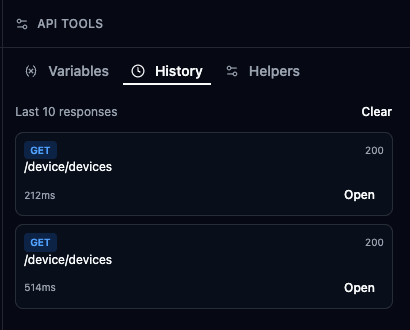
Automatic History
Section titled “Automatic History”Every API request is saved to history:
- Request method and endpoint
- Request body (if applicable)
- Response status
- Timestamp
- Duration
Accessing History
Section titled “Accessing History”Open the History tab in the right sidebar to see past requests. The header shows “Last N responses” where N is your configured limit.
History Entry Details
Section titled “History Entry Details”Each entry shows:
| Field | Description |
|---|---|
| Method Badge | GET , POST , etc. |
| Endpoint | The API path called |
| Status | Response status code with color indicator |
| Duration | How long it took (e.g., “234ms”) |
Entries have a colored left border: green for success (2xx), red for errors.
History Actions
Section titled “History Actions”Click a history entry to access actions:
| Action | Result |
|---|---|
| Open in New Tab | Opens the request in a new API tab with the saved response |
| Copy Path | Copies the endpoint path |
Reloading Past Requests
Section titled “Reloading Past Requests”-
Find the request in history
-
Click the open button (route icon)
-
Request opens in a new tab with the saved response
-
Modify parameters if needed
-
Send again
History Settings
Section titled “History Settings”History is stored per-portal with configurable limits:
| Setting | Location | Default |
|---|---|---|
| History Limit | Settings → API History Limit | 10 requests |
Configure in Settings (Ctrl+, / Cmd+,).
Clearing History
Section titled “Clearing History”- Click Clear at the top of the history panel
- All history entries for the current portal are removed
Code Snippets
Section titled “Code Snippets”The Response Viewer’s Snippets tab generates code for the current request in multiple languages:
| Language | Use Case |
|---|---|
| cURL | Command-line testing, shell scripts |
| Python | Automation scripts with requests library |
| PowerShell | Windows automation with Invoke-RestMethod |
| Groovy | LogicMonitor script integration |
Snippets include:
- Full URL with resolved variables
- Headers (including X-version and Content-Type)
- Request body (for POST/PUT/PATCH)
Workflow Examples
Section titled “Workflow Examples”Workflow for creating a resource and using its ID:
-
Create a device: POST
/device/devices -
View the response and note the
idfield -
Open Helpers tab and click Save next to
$.id -
Variable
idis now available -
Use in subsequent requests:
/device/devices/{{id}}
Variables for time-based queries:
| Variable | Value |
|---|---|
startTime | 1704067200 (epoch timestamp) |
endTime | 1704153600 |
deviceId | 12345 |
Request:
GET /device/devices/{{deviceId}}/devicedatasources/{{datasourceId}}/data ?start={{startTime}} &end={{endTime}}Update time variables to query different periods.
Create sequences of related requests:
-
Create device: POST
/device/devices -
Save ID: Use Helpers to save
$.idasdeviceId -
Add properties: PATCH
/device/devices/{{deviceId}} -
Verify: GET
/device/devices/{{deviceId}}
Each request uses the variable from the previous step.
Best Practices
Section titled “Best Practices”- Variable Naming — Use clear names like
targetDeviceIdinstead ofid1. Prefix by purpose:test_deviceId,prod_deviceId. - Organizing Variables — Keep your variable list clean by removing unused ones. Use descriptive names that indicate the value’s purpose.
- History Management — Use history to quickly repeat recent requests. Open in new tab to compare before/after results.
- Security — Variables are stored locally in your browser. Don’t store sensitive credentials. Clear when switching computers.